

Dot Commands
Dot commands are available in the DuckDB CLI client. To use one of these commands, begin the line with a period (.) immediately followed by the name of the command you wish to execute. Additional arguments to the command are entered, space separated, after the command. If an argument must contain a space, either single or double quotes may be used to wrap that parameter. Dot commands must be entered on a single line, and no whitespace may occur before the period. No semicolon is required at the end of the line. To see available commands, use the .help command.
List of Dot Commands
| Command | Description |
|---|---|
.bail ⟨on/off⟩{:.language-sql .highlight} |
Stop after hitting an error. Default: off |
.binary ⟨on/off⟩{:.language-sql .highlight} |
Turn binary output on or off. Default: off |
.cd ⟨DIRECTORY⟩{:.language-sql .highlight} |
Change the working directory to DIRECTORY |
.changes ⟨on/off⟩{:.language-sql .highlight} |
Show number of rows changed by SQL |
.columns{:.language-sql .highlight} |
Column-wise rendering of query results |
.constant ⟨COLOR⟩{:.language-sql .highlight} |
Sets the syntax highlighting color used for constant values |
.constantcode ⟨CODE⟩{:.language-sql .highlight} |
Sets the syntax highlighting terminal code used for constant values |
.databases{:.language-sql .highlight} |
List names and files of attached databases |
.dump ⟨TABLE⟩{:.language-sql .highlight} |
Render database content as SQL. TABLE is a LIKE pattern for the tables to dump |
.echo ⟨on/off⟩{:.language-sql .highlight} |
Turn command echo on or off |
.exit ⟨CODE⟩{:.language-sql .highlight} |
Exit this program with return-code CODE |
.headers ⟨on/off⟩{:.language-sql .highlight} |
Turn display of headers on or off. Does not apply to duckbox mode |
.help ⟨-all⟩ ⟨PATTERN⟩{:.language-sql .highlight} |
Show help text for PATTERN. Use .help shortcuts to display keyboard shortcuts |
.highlight ⟨on/off⟩{:.language-sql .highlight} |
Toggle syntax highlighting in the shell on / off. See the query syntax highlighting section for more details |
.highlight_colors ⟨COMPONENT⟩ ⟨COLOR⟩{:.language-sql .highlight} |
Configure the color of each component in (duckbox only). See the result syntax highlighting section for more details |
.highlight_mode ⟨mixed/dark/light⟩{:.language-sql .highlight} |
Toggle the highlight mode. See the dark/light mode section for details |
.highlight_results ⟨on/off⟩{:.language-sql .highlight} |
Toggle highlighting in result tables on / off (duckbox only). See the result syntax highlighting section for more details |
.import ⟨FILE⟩ ⟨TABLE⟩{:.language-sql .highlight} |
Import data from FILE into TABLE. Supports --csv, --json, --parquet options |
.indexes ⟨TABLE⟩{:.language-sql .highlight} |
Show names of indexes |
.keyword ⟨COLOR⟩{:.language-sql .highlight} |
Sets the syntax highlighting color used for keywords |
.keywordcode ⟨CODE⟩{:.language-sql .highlight} |
Sets the syntax highlighting terminal code used for keywords |
.large_number_rendering ⟨all/footer/off⟩{:.language-sql .highlight} |
Toggle readable rendering of large numbers (duckbox only, default: footer) |
.last{:.language-sql .highlight} |
Render the last result without truncating. Useful for navigating with the pager |
.log ⟨FILE/off⟩{:.language-sql .highlight} |
Turn logging on or off. FILE can be stderr / stdout |
.maxrows ⟨COUNT⟩{:.language-sql .highlight} |
Sets the maximum number of rows for display. Only for duckbox mode |
.maxwidth ⟨COUNT⟩{:.language-sql .highlight} |
Sets the maximum width in characters. 0 defaults to terminal width. Only for duckbox mode |
.mode ⟨MODE⟩ ⟨TABLE⟩{:.language-sql .highlight} |
Set output mode |
.multiline{:.language-sql .highlight} |
Set multi-line mode (default) |
.nullvalue ⟨STRING⟩{:.language-sql .highlight} |
Use STRING in place of NULL values. Default: NULL |
.once ⟨OPTIONS⟩ ⟨FILE⟩{:.language-sql .highlight} |
Output for the next SQL command only to FILE |
.open ⟨OPTIONS⟩ ⟨FILE⟩{:.language-sql .highlight} |
Close existing database and reopen FILE. Options: --new, --nofollow, --readonly, --sql |
.output ⟨FILE⟩{:.language-sql .highlight} |
Send output to FILE or stdout if FILE is omitted |
.pager ⟨OPTIONS⟩{:.language-sql .highlight} |
Control pager usage for output. See the paging section for details |
.print ⟨STRING...⟩{:.language-sql .highlight} |
Print literal STRING |
.progress_bar ⟨COMPONENT⟩ {:.language-sql .highlight} |
Set the progress bar component styles |
.prompt ⟨OPTIONS⟩ ⟨CONTINUE⟩{:.language-sql .highlight} |
Replace the standard prompts |
.quit{:.language-sql .highlight} |
Exit this program |
.read ⟨FILE⟩{:.language-sql .highlight} |
Read input from FILE |
.rows{:.language-sql .highlight} |
Row-wise rendering of query results (default) |
.safe_mode{:.language-sql .highlight} |
Activates safe mode |
.schema ⟨PATTERN⟩{:.language-sql .highlight} |
Show the CREATE statements matching PATTERN |
.separator ⟨COL⟩ ⟨ROW⟩{:.language-sql .highlight} |
Change the column and row separators |
.shell ⟨CMD⟩ ⟨ARGS...⟩{:.language-sql .highlight} |
Run CMD with ARGS... in a system shell |
.show{:.language-sql .highlight} |
Show the current values for various settings |
.singleline{:.language-sql .highlight} |
Set single-line mode |
.startup_text ⟨none/version/all⟩{:.language-sql .highlight} |
Controls the start-up text displayed when launching the CLI. Set this as the first line in ~/.duckdbrc |
.system ⟨CMD⟩ ⟨ARGS...⟩{:.language-sql .highlight} |
Run CMD with ARGS... in a system shell |
.tables ⟨TABLE⟩{:.language-sql .highlight} |
List tables matching LIKE pattern TABLE with column names, types and row counts, grouped by database and schema |
.timer ⟨on/off⟩{:.language-sql .highlight} |
Turn SQL timer on or off. SQL statements separated by ; but not separated via newline are measured together |
.width ⟨NUM1⟩ ⟨NUM2⟩ ...{:.language-sql .highlight} |
Set minimum column widths for columnar output |
Using the .help Command
The .help text may be filtered by passing in a text string as the first argument.
.help m.maxrows COUNT Sets the maximum number of rows for display (default: 40). Only for duckbox mode..maxwidth COUNT Sets the maximum width in characters. 0 defaults to terminal width. Only for duckbox mode..mode MODE ?TABLE? Set output mode.output: Writing Results to a File
By default, the DuckDB CLI sends results to the terminal’s standard output. However, this can be modified using either the .output or .once commands. Pass in the desired output file location as a parameter. The .once command will only output the next set of results and then revert to standard out, but .output will redirect all subsequent output to that file location. Note that each result will overwrite the entire file at that destination. To revert back to standard output, enter .output with no file parameter.
In this example, the output format is changed to markdown, the destination is identified as a Markdown file, and then DuckDB will write the output of the SQL statement to that file. Output is then reverted to standard output using .output with no parameter.
.mode markdown.output my_results.mdSELECT 'taking flight' AS output_column;.outputSELECT 'back to the terminal' AS displayed_column;The file my_results.md will then contain:
| output_column || ------------- || taking flight |The terminal will then display:
| displayed_column || -------------------- || back to the terminal |A common output format is CSV, or comma separated values. DuckDB supports SQL syntax to export data as CSV or Parquet, but the CLI-specific commands may be used to write a CSV instead if desired.
.mode csv.once my_output_file.csvSELECT 1 AS col_1, 2 AS col_2UNION ALLSELECT 10 AS col1, 20 AS col_2;The file my_output_file.csv will then contain:
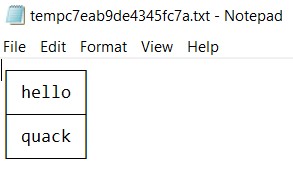
col_1,col_21,210,20By passing special options (flags) to the .once command, query results can also be sent to a temporary file and automatically opened in the user’s default program. Use either the -e flag for a text file (opened in the default text editor), or the -x flag for a CSV file (opened in the default spreadsheet editor). This is useful for more detailed inspection of query results, especially if there is a relatively large result set. The .excel command is equivalent to .once -x.
.once -eSELECT 'quack' AS hello;The results then open in the default text file editor of the system, for example:
Tip macOS users can copy the results to their clipboards using
pbcopyby using.onceto output topbcopyvia a pipe:.once |pbcopyCombining this with the
.headers offand.mode linesoptions can be particularly effective.
Querying the Database Schema
All DuckDB clients support querying the database schema with SQL, but the CLI has additional dot commands that can make it easier to understand the contents of a database.
The .tables command will return a list of tables in the database. It has an optional argument that will filter the results according to a LIKE pattern.
CREATE TABLE swimmers AS SELECT 'duck' AS animal;CREATE TABLE fliers AS SELECT 'duck' AS animal;CREATE TABLE walkers AS SELECT 'duck' AS animal;.tablesfliers swimmers walkersFor example, to filter to only tables that contain an l, use the LIKE pattern %l%.
.tables %l%fliers walkersThe .schema command will show all of the SQL statements used to define the schema of the database.
.schemaCREATE TABLE fliers (animal VARCHAR);CREATE TABLE swimmers (animal VARCHAR);CREATE TABLE walkers (animal VARCHAR);Dumping Database Content as SQL
The .dump command renders the database content as SQL statements, including both schema definitions and data. This is useful for creating backups or migrating data.
.dumpAn optional TABLE argument filters the output using a LIKE pattern. Multiple patterns can be provided as additional arguments.
.dump %swim%The --newlines option allows unescaped newline characters in the output:
.dump --newlinesProgress Bar
The DuckDB CLI client’s progress bar supports customization through components.
The .progress_bar command supports --add and --clear parameters for adding and removing components.
For details on specific usage, see the examples below.
Configuring the Progress Bar Display
To check if the progress bar is enabled:
SELECT * FROM duckdb_settings() WHERE name = 'enable_progress_bar';To check the current minimum amount of time (in milliseconds) a query needs to take before displaying a progress bar:
SELECT * FROM duckdb_settings() WHERE name = 'progress_bar_time';To set the minimum amount of time that the progress bar displays to 100 milliseconds:
SET progress_bar_time = 100;To set that progress bar component to a red text that displays the current time on the progress bar:
.progress_bar --add "{align:right}{min_size:20}{color:red}Time: {sql:select (current_time::varchar).split('.')[1]}{color:reset} "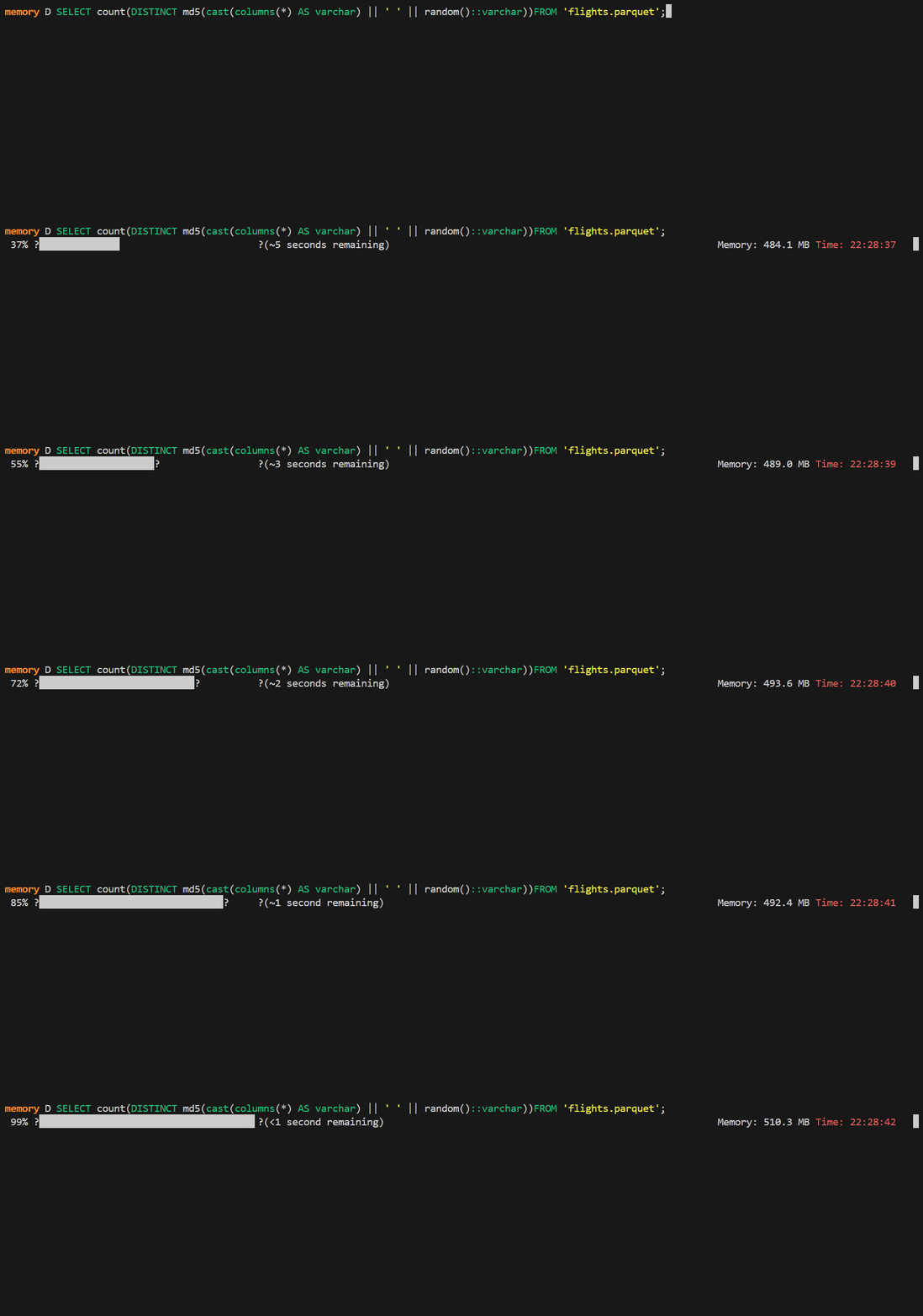
.progress_bar --addcommands are additive, issuing multiple--addcalls will stack additional components on the progress bar.
To set that progress bar component to a blue text that displays the file cache RAM usage on the progress bar:
.progress_bar --add "{align:right}{min_size:20}{color:blue}External Cache Usage: {sql:select format_bytes(memory_usage_bytes) from duckdb_memory() where tag='EXTERNAL_FILE_CACHE'}{color:reset};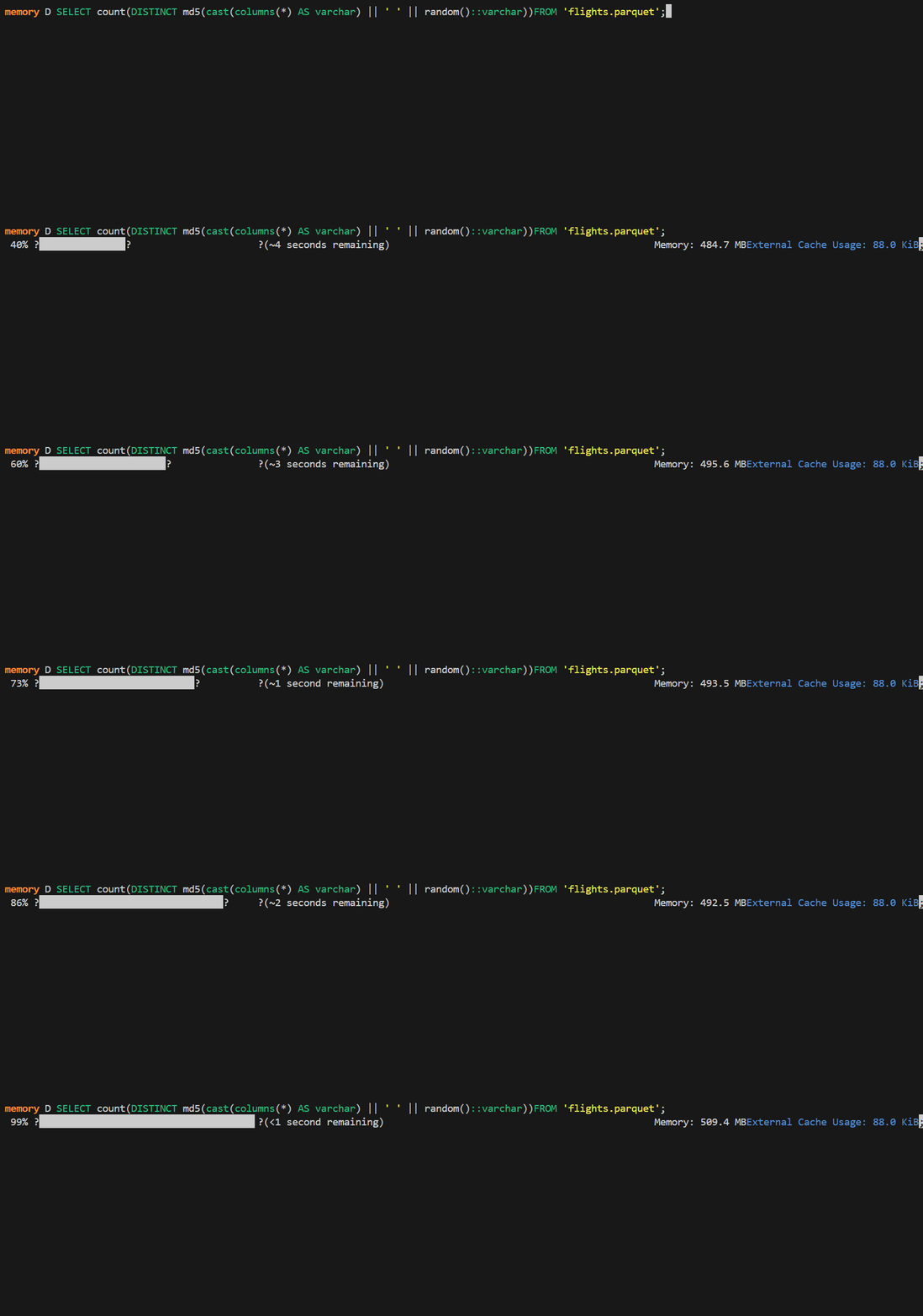
To reset all existing progress bar components:
.progress_bar --clearSyntax Highlighters
The DuckDB CLI client has a syntax highlighter for the SQL queries and another for the duckbox-formatted result tables.
Configuring the Query Syntax Highlighter
By default the shell includes support for syntax highlighting. The CLI’s syntax highlighter can be configured using the following commands.
To turn off the highlighter:
.highlight offTo turn on the highlighter:
.highlight onTo configure the color used to highlight constants:
.constant [red|green|yellow|blue|magenta|cyan|white|brightblack|brightred|brightgreen|brightyellow|brightblue|brightmagenta|brightcyan|brightwhite].constantcode ⟨terminal_code⟩For example:
.constantcode 033[31mTo configure the color used to highlight keywords:
.keyword [red|green|yellow|blue|magenta|cyan|white|brightblack|brightred|brightgreen|brightyellow|brightblue|brightmagenta|brightcyan|brightwhite].keywordcode ⟨terminal_code⟩For example:
.keywordcode 033[31mConfiguring the Result Syntax Highlighter
By default, the result highlighting makes a few small modifications:
- Bold column names.
NULLvalues are greyed out.- Layout elements are grayed out.
The highlighting of each of the components can be customized using the .highlight_colors command.
For example:
.highlight_colors layout red.highlight_colors column_type yellow.highlight_colors column_name yellow bold_underline.highlight_colors numeric_value cyan underline.highlight_colors temporal_value red bold.highlight_colors string_value green bold.highlight_colors footer grayThe result highlighting can be disabled using .highlight_results off.
Shorthands
DuckDB’s CLI allows using shorthands for dot commands. Once a sequence of characters can be unambiguously completed to a dot command or an argument, the CLI (silently) autocompletes them. For example:
.mo maIs equivalent to:
.mode markdownTip Avoid using shorthands in SQL scripts to improve readability and ensure that the scripts are future-proof.
Importing Data
The .import command imports data from a file into a DuckDB table. It uses DuckDB’s reader functions (read_csv, read_json, read_parquet) and supports automatic schema detection. If the target table does not exist, it is automatically created.
The file format can be specified explicitly using --csv, --json, or --parquet. If no format is specified, the format is inferred from the file extension.
.import data.csv my_tableAdditional parameters can be passed to the underlying reader function using `–⟨parameter⟩ ⟨value⟩{:.language-sql .highlight} syntax:
.import data.csv my_table --delimiter "|" --header falseTo import a JSON file:
.import data.json my_table --jsonTo import a Parquet file:
.import data.parquet my_table